This guide will assist you in sharing a player's medical records with both internal and external consultants.
Accessing the Player's Dashboard
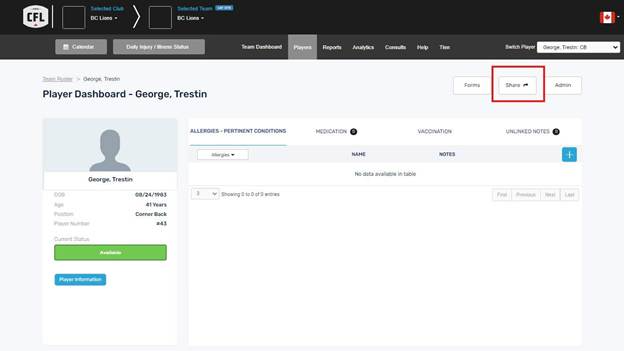
You can access a player's dashboard in two ways:
- Directly select the athlete's name from your team dashboard
- Utilize the player's dropdown menu to choose the athlete's name
Using the Record Sharing Feature
- On the player's dashboard, find and click the Share tab located on the right side of the screen.
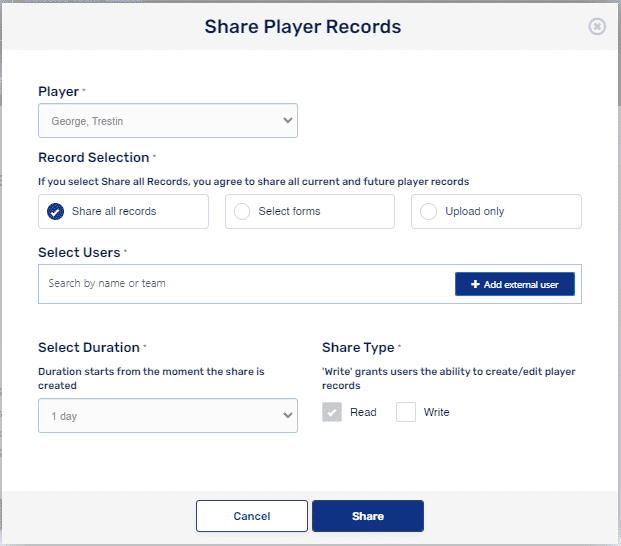
- Ensure the correct player is chosen in the dropdown menu at the top of the sharing page.
- Select what to share:
- Share all records: Choose this option to share the player’s complete medical history
- Share selected forms: Use the dropdown menus under "Illnesses and injuries" to specify particular injuries or conditions to share
- Upload Only: This option allows the consultant to upload information but not create any new records.
Selecting the Recipient
For internal users (current CFL ARMS users):
- Type their name in the user selection field
- Select their name when it appears in the dropdown
For external users (those who are not current CFL ARMS users):
- Click the blue Add External User button
- Fill in all required fields (marked with a red asterisk*)
- Click the Add button to include them as an external user
Setting Access Duration and Finalizing the Share
- Select the duration for which you want the consultant to have access to the files.
- Click the blue Share button to complete the process.
- When sharing an internal record, a pop-up window will confirm that the record has been successfully shared.
- When sharing an external record, a pop-up window will display:
- The consultant's name
- The username for access
- The password for access
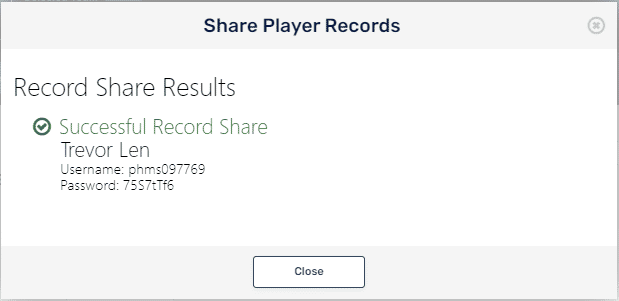
Important: For security reasons, communicate the password to the consultant separately via email or phone call. This information will remain accessible through the Team Menu - Functions - Consultant Authorization Management.
What the Consultant Will Receive
External Consultants
The external consultants will receive an email from ARMS containing:
- The username for access
- The athlete's name
- The start and end times of their access period
- Instructions on how to access the player's account
- A URL link to the login page
To access the profile, the external consultant must:
- Click the URL in the email
- Input the username from the email and the password you provided separately
- Click the Login button
After logging in, the consultant will see:
- The athlete's name
- All injuries they have been granted access to
- An Open button to view each injury and relevant records
Internal Consultants
If an internal consultant has been given access to records:
- While on the player's dashboard, check the top options menu bar and look for a Consults option with a red circle indicating the number of consults
- Click on this for a list of players you currently have access to the profile for the athlete.
- Click on the player's name to navigate to the player's dashboard.
Was this article helpful?
That’s Great!
Thank you for your feedback
Sorry! We couldn't be helpful
Thank you for your feedback
Feedback sent
We appreciate your effort and will try to fix the article